
Move a Post
A Post moves through Idea, Drafting, With Client, Approved and Posted. You move it by hand at every step. See How a Post moves.
The buttons above the text show the next step and the step back:
- When you start to write, select Start drafting.
- When you show the Post to the Client, select Send to Client. Penwisp does not email them. You show it to them in your usual way.
- When the Client says yes, select Mark Approved.
- When the Post goes out on X or LinkedIn, select Mark Posted.
To go back one step, select the Back to button, such as Back to Drafting.
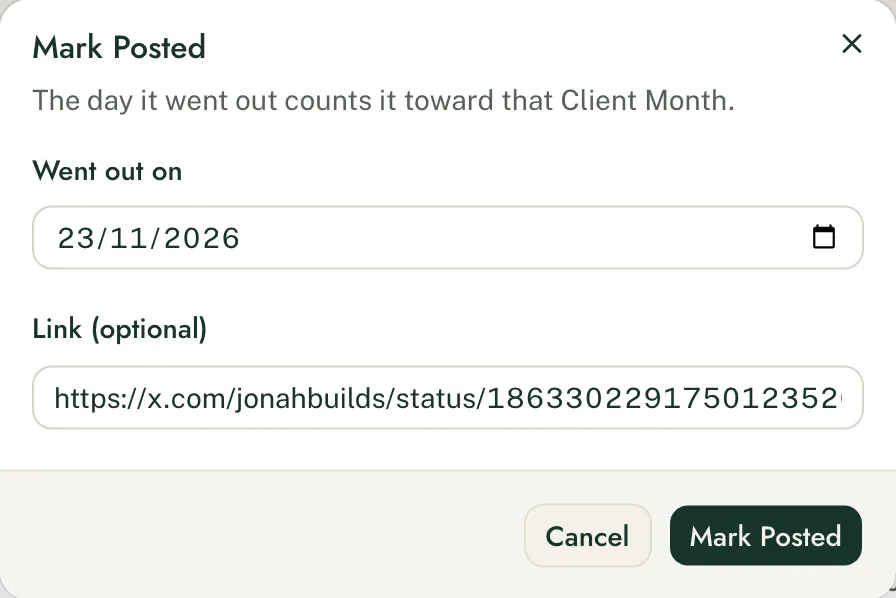
Mark a Post as Posted
Section titled “Mark a Post as Posted”- Select Mark Posted.
- In Went out on, enter the day on which it went out. Penwisp fills in today.
- If you want, paste the web address of the Post in Link (optional).
- Select Mark Posted.
The day decides the Client Month in which the Post counts toward the Commitment.